 BinderIQ
 guide
Check Pokémon prices
before you bid.
Watch Whatnot or eBay Live inside BinderIQ. When a supported Pokémon card comes into view, the Price Sheet puts the market reference next to the show.
Follow the steps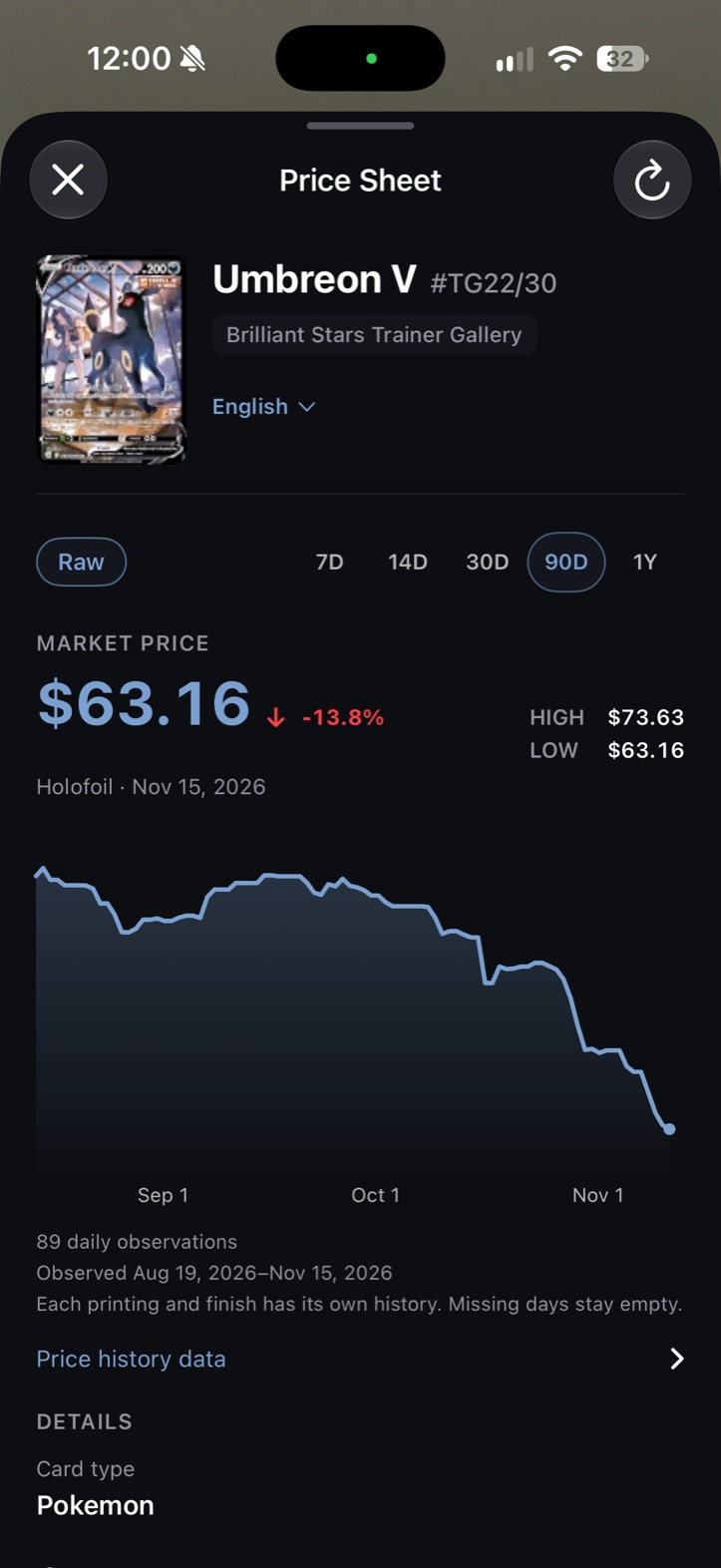
Open a show inside BinderIQ
Open Identify and tap the lightning bolt to open Live Pokémon Prices. Choose Whatnot or eBay Live, find a Pokémon show, and play the video. Sign in to the marketplace when you want to use its bidding controls.
First time? Allow Live Pricing when prompted. The Pokémon catalog needs a one-time download of about 500 MB over Wi-Fi. Get it ready before the show starts.
Read the Price Sheet when a card appears
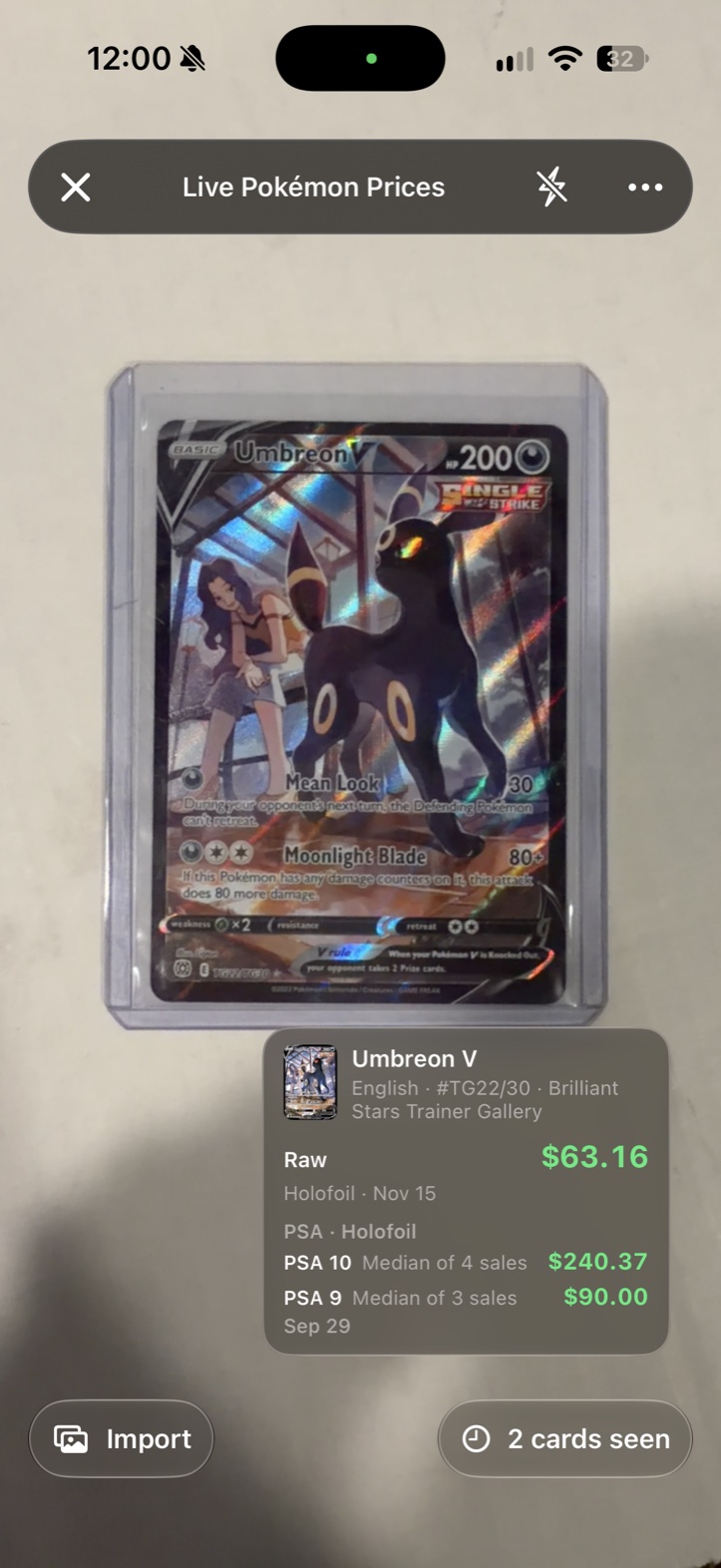
When BinderIQ recognizes a supported card, the Price Sheet appears over the video. Tap the recognized card to open its details and recent price history. Prices appear nearly instantly using market data refreshed daily.
Start with the set and card number. If BinderIQ shows several finishes, use the row that matches the seller’s card. For an ungraded card, read the Raw price. For a PSA slab, look for the same grade when BinderIQ has a reference for it.
If the seller hasn’t shown the finish or grade clearly, ask for a closer look before using the price to set your bid.
Return to Shop & Bid
Tap Shop & Bid to bring back the marketplace’s shop and bid controls. Factor shipping and taxes into the total you’re comfortable paying. Whatnot or eBay handles the bid when you place it.
Find the card again after the show
Tap the clock while watching to see cards recognized in that session. After you leave, open Live Pokémon Prices → Past Streams to revisit them on the same device.